> For the complete documentation index, see [llms.txt](https://docs.vagon.io/llms.txt). Markdown versions of documentation pages are available by appending `.md` to page URLs; this page is available as [Markdown](https://docs.vagon.io/teams/troubleshooting/microsoft-365-login-issues.md).
# Microsoft 365 Login Issues
Microsoft 365 applications running inside your Vagon computer sign in through Microsoft's licensing and identity flows. Occasionally these flows can leave your account in a state where the Microsoft apps can no longer complete sign-in, even though the account still appears on your computer.
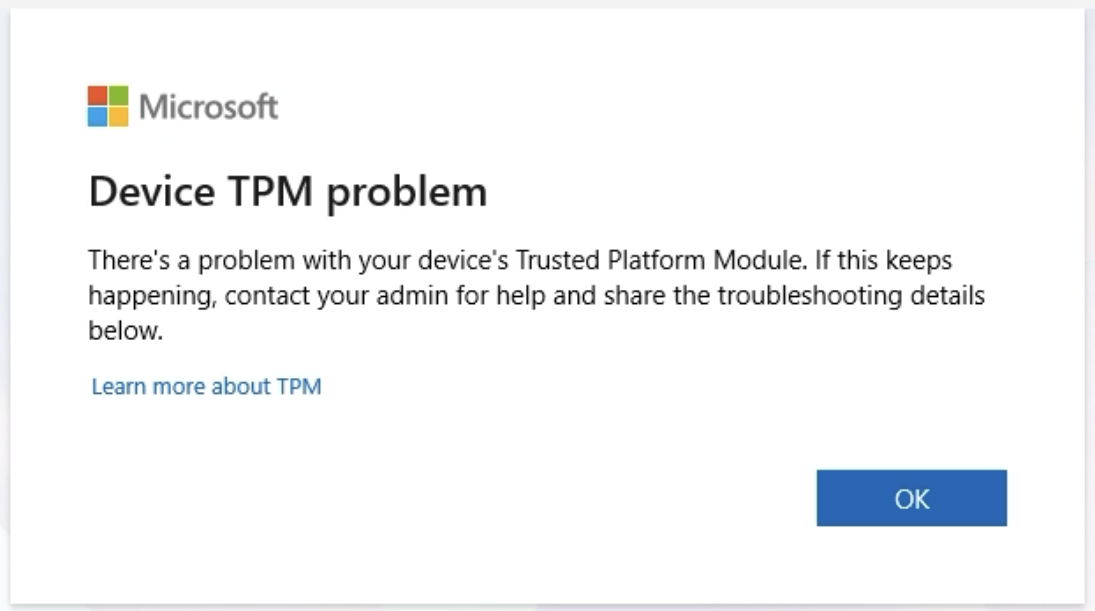
When this happens, opening a Microsoft app or trying to log in to your Microsoft 365 account can return a **Device TPM problem** error.
Depending on the flow, the same underlying issue may also be reported with one of the following messages:
* **An unexpected error occurred.**
* **Keyset does not exist.**
* **The credential is invalid. Unexpected sub status (6008).**
If you run into any of these, follow the steps below to re-register your account and restore access.
## 1. Close All Microsoft Applications
Before making any changes, close **every** open Microsoft application window (Outlook, Word, Excel, Teams, OneDrive, etc.). The account cannot be re-registered correctly while these apps are still running.
## 2. Open the Accounts Settings
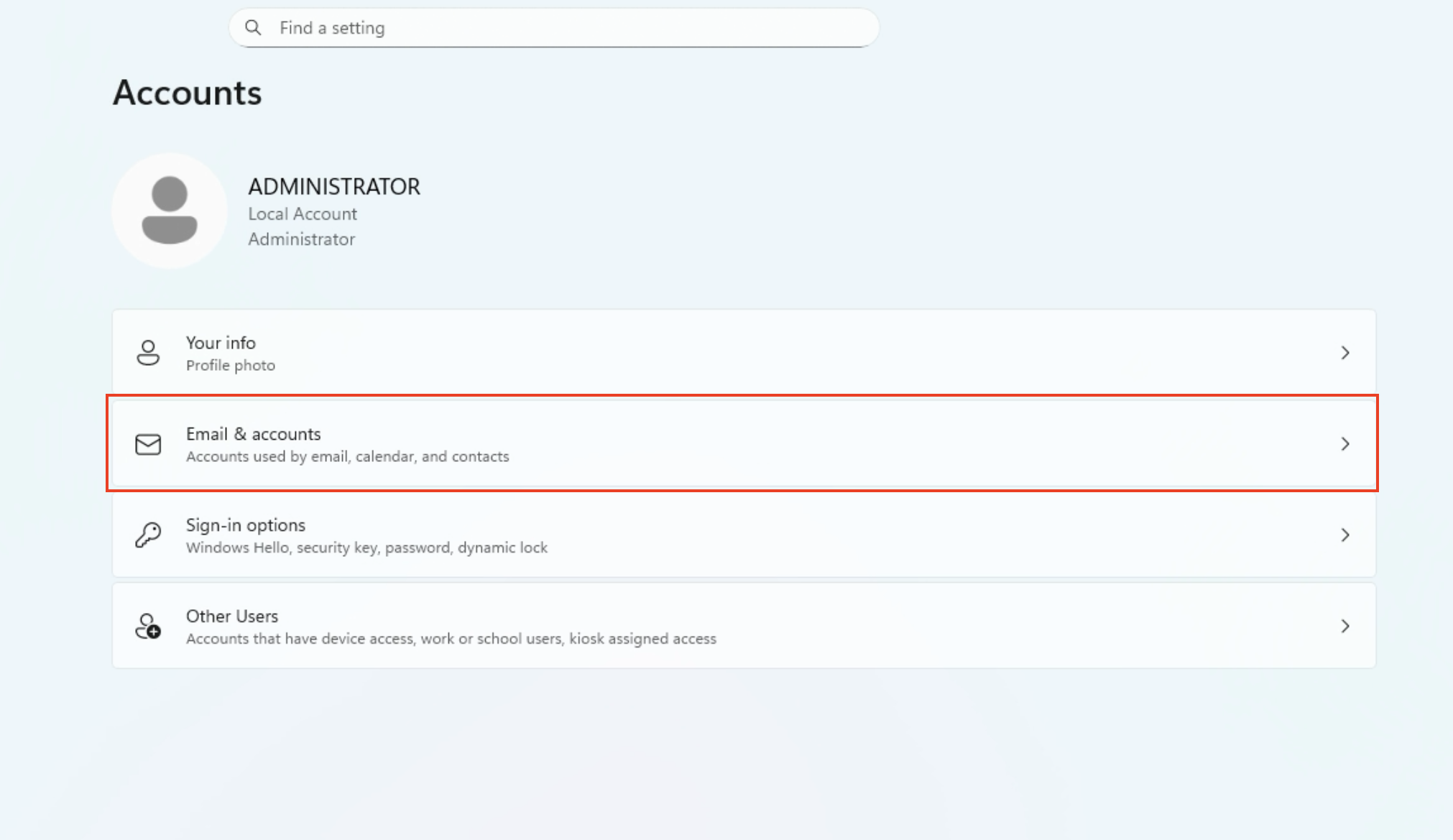
Open the **Settings** app from the Start Menu, switch to the **Accounts** tab, and click **Email & accounts** to list the active accounts on the computer.
## 3. Re-Add Your Account via "Add a work or school account"
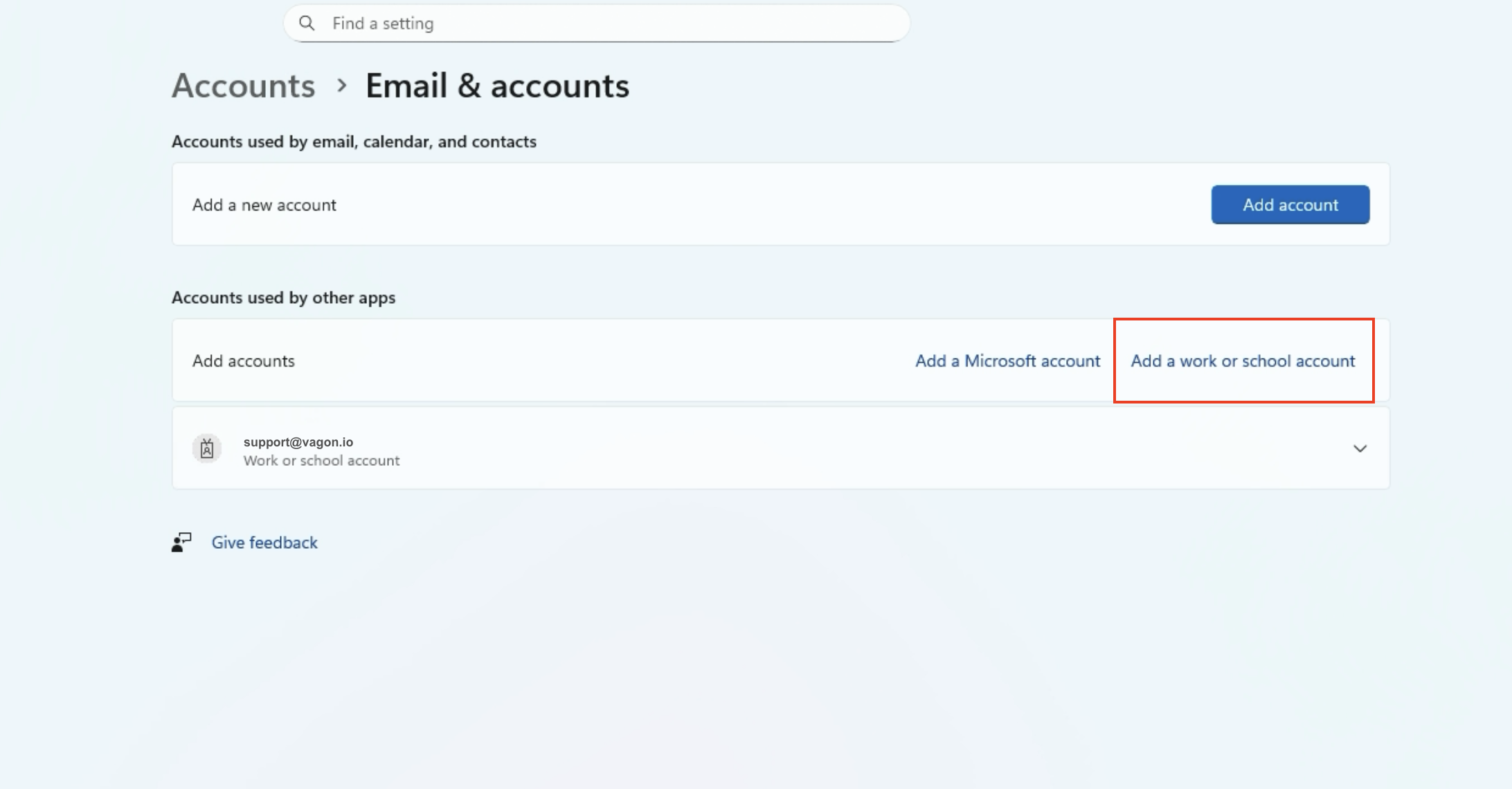
On the **Email & accounts** page, under **Accounts used by other apps**, click **Add a work or school account** and sign in to your Microsoft 365 account.
> **Do this even if your account is already listed on the page.** Seeing your account under **Accounts used by other apps** does not mean it is registered correctly. You must re-add it through **Add a work or school account** to resolve the error.
Once you have signed in, you will be able to open your Microsoft 365 applications without any issues.
## Common Mistakes
Two mistakes prevent this fix from working — avoid both:
* **Clicking the wrong button.** The blue **Add account** button at the top of the page is more prominent, so it is easy to click by mistake. It does **not** resolve this issue. You must use the **Add a work or school account** link under *Accounts used by other apps*.
* **Leaving the page too early.** If you see your account already listed and assume nothing needs to be done, the error will persist. Always re-add the account through **Add a work or school account**, even when it already appears in the list.