> For the complete documentation index, see [llms.txt](https://docs.vagon.io/llms.txt). Markdown versions of documentation pages are available by appending `.md` to page URLs; this page is available as [Markdown](https://docs.vagon.io/teams/features/microsoft-entra-sso.md).
# Microsoft Entra (Azure AD) Login
Microsoft Entra (Azure AD) Single Sign-On lets your team members sign in to Vagon with your organization's Microsoft identity. Only Team **Owners** and **Admins** can configure it.
Because Vagon is not listed in the Microsoft Entra app gallery, you register it in your tenant as a **custom (non-gallery)** application, then connect it to Vagon from your Team Settings.
**Prerequisites**
* A Vagon Teams organization, with **Owner** or **Admin** access.
* Access to the [Microsoft Entra admin center](https://portal.azure.com/) for your organization, with permission to register applications.
### Step 1 — Set the SSO login path in Vagon and copy the Callback URL
Start in Vagon to generate the values you'll need in Microsoft Entra.
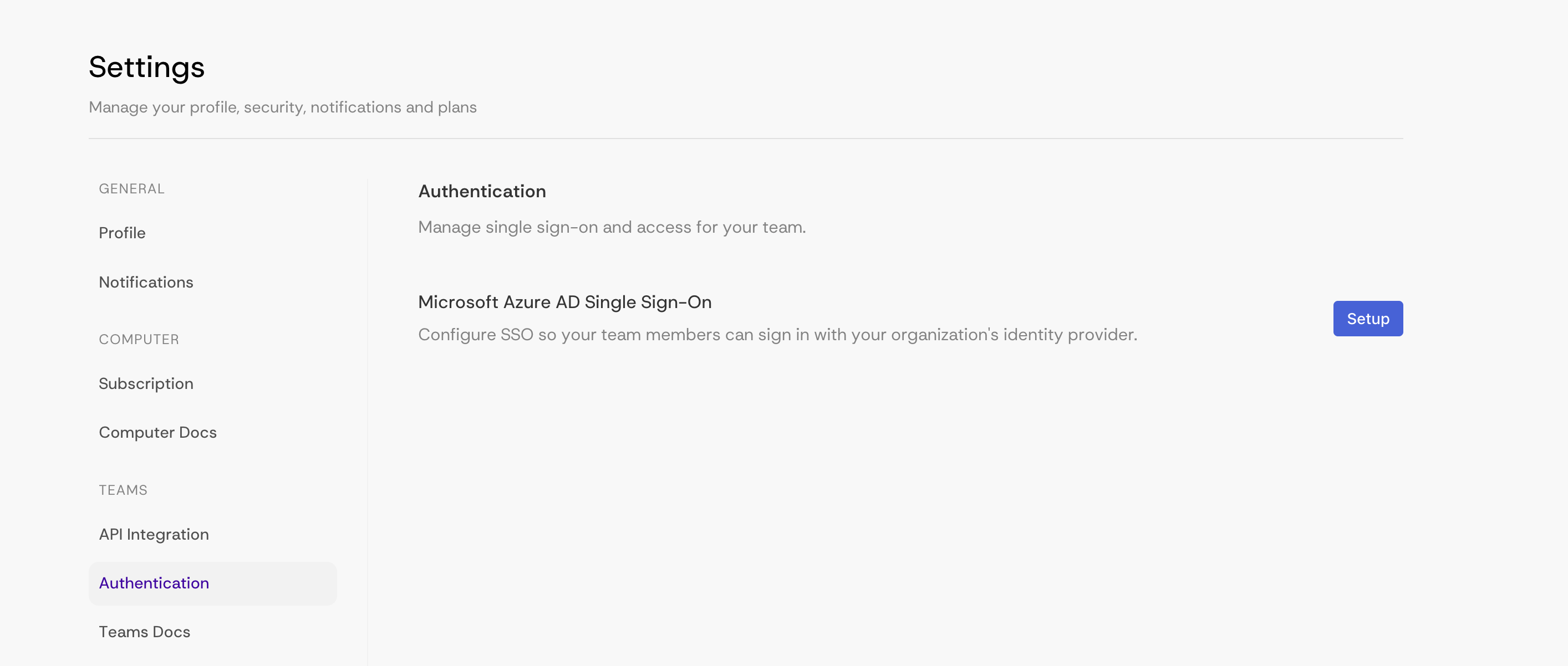
1. Go to **Settings → Teams → Authentication** and click **Setup** under **Microsoft Azure AD Single Sign-On**.
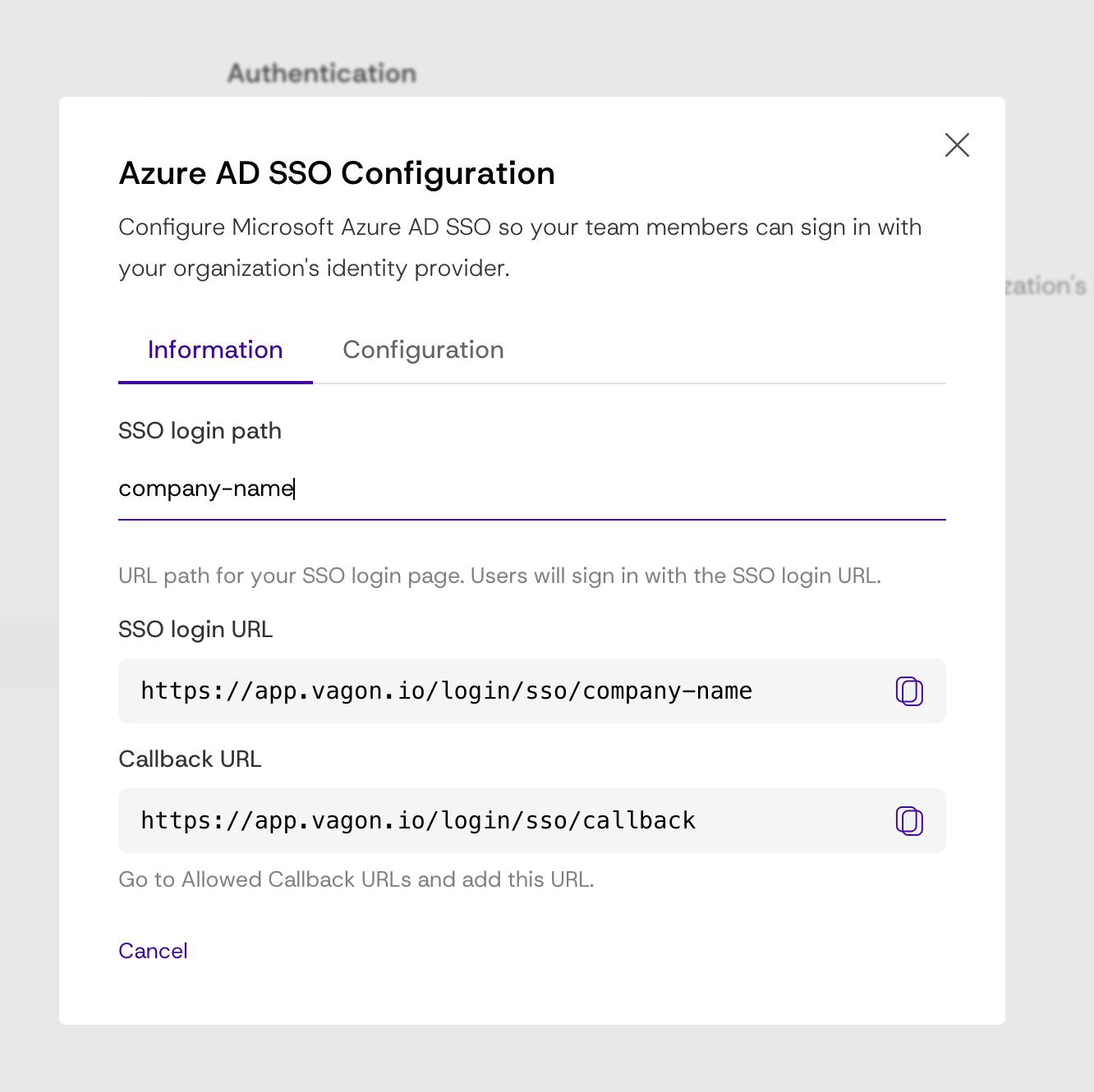
2. On the **Information** tab, enter an **SSO login path** (for example, `company-name`). This generates your **SSO login URL** — the address your team members use to sign in (e.g. `https://app.vagon.io/login/sso/company-name`).
3. Copy the **Callback URL** shown on this tab. You will add it to your Microsoft Entra application in the next step.
{% hint style="info" %}
The **SSO login path** must be 3–64 characters using only lowercase letters, numbers, and hyphens (for example, `my-company`). It must be unique, and the word `callback` is reserved and cannot be used.
{% endhint %}
{% hint style="info" %}
Always copy the **Callback URL** from your own Vagon dashboard rather than typing it by hand — it must match exactly when you add it to Microsoft Entra.
{% endhint %}
### Step 2 — Register Vagon as a custom application in Microsoft Entra
Keep the Vagon overlay open (you'll return to it in Step 3) and open the Microsoft Entra admin center in another tab.
1. Go to and open **Manage Microsoft Entra ID**.
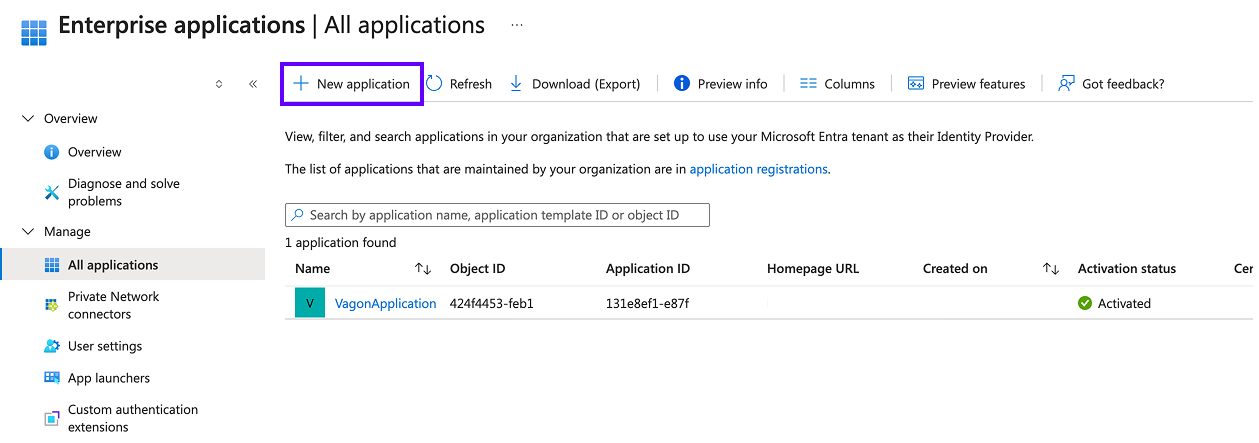
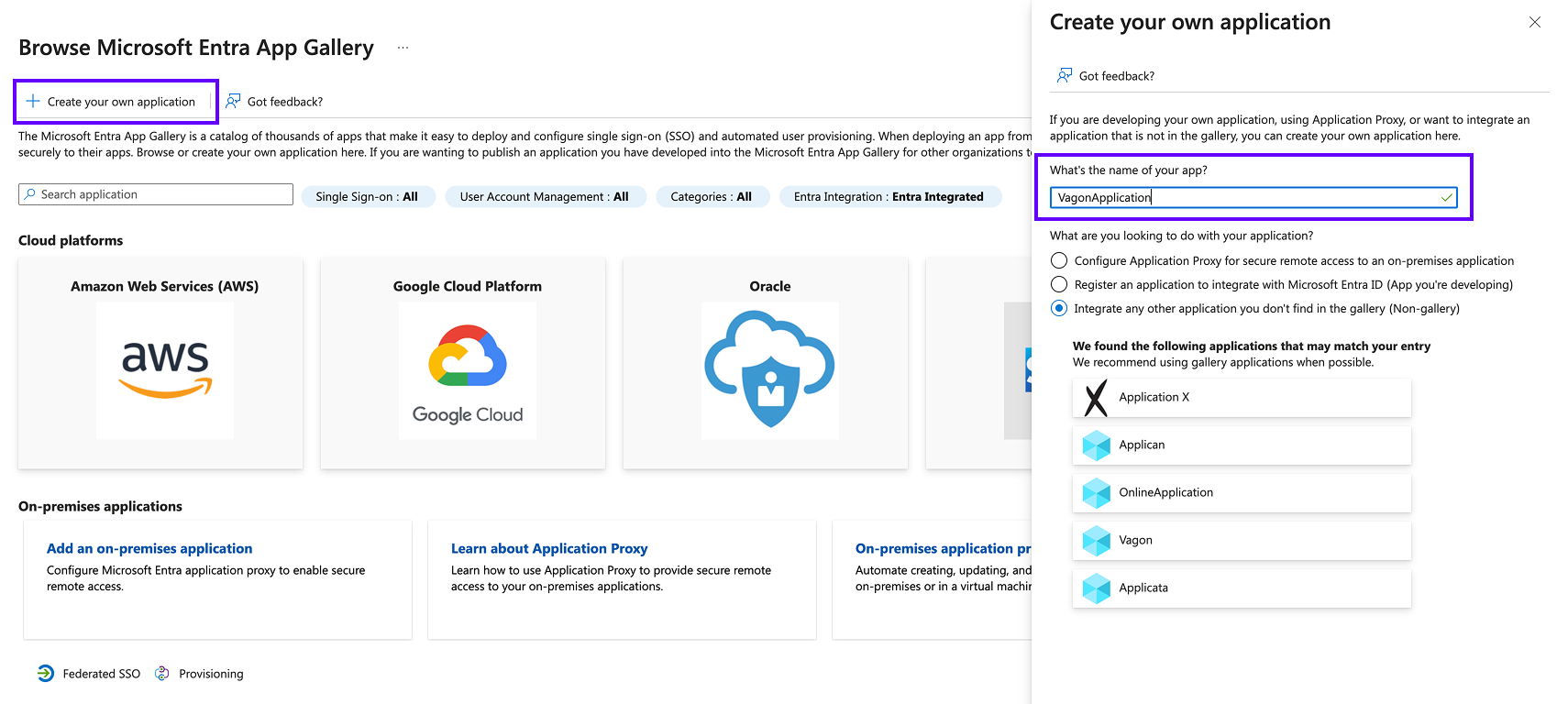
2. Open **Enterprise applications**, click **New application**, then **Create your own application**. Choose **Integrate any other application you don't find in the gallery (Non-gallery)**, give it a name (for example, `Vagon`), and click **Create**.
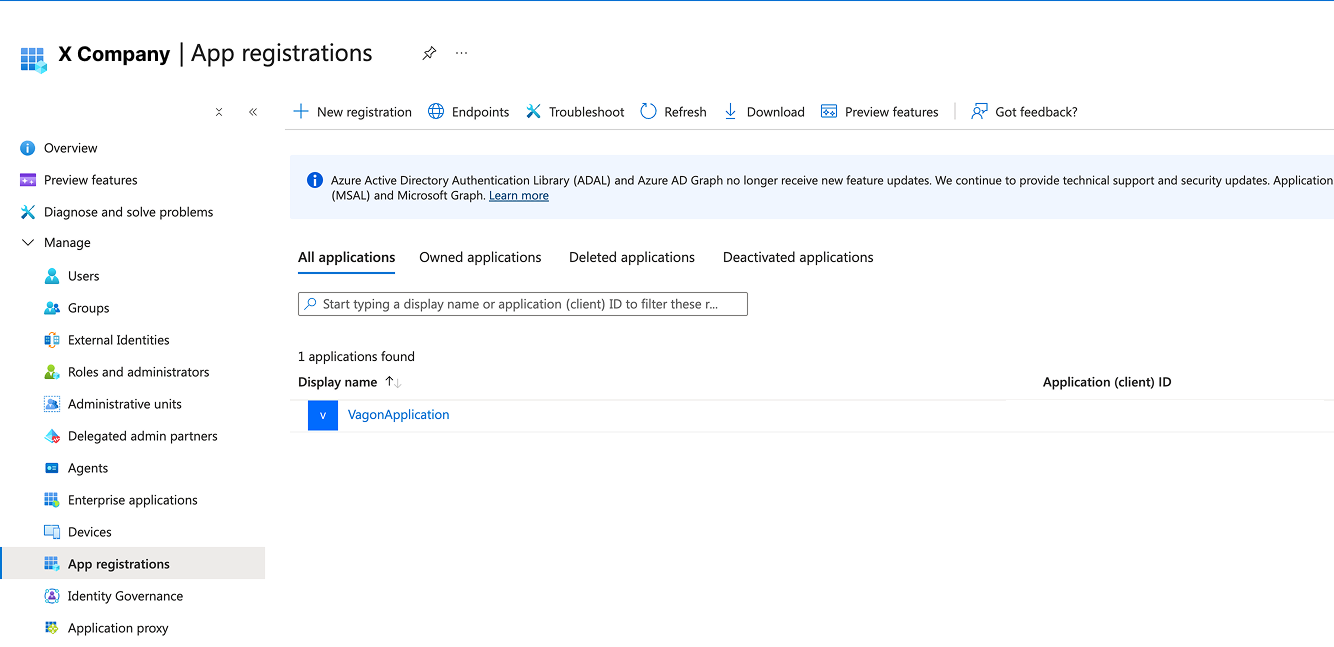
3. Go back to **Home**, open **App registrations** from the sidebar, and select the application you just created.
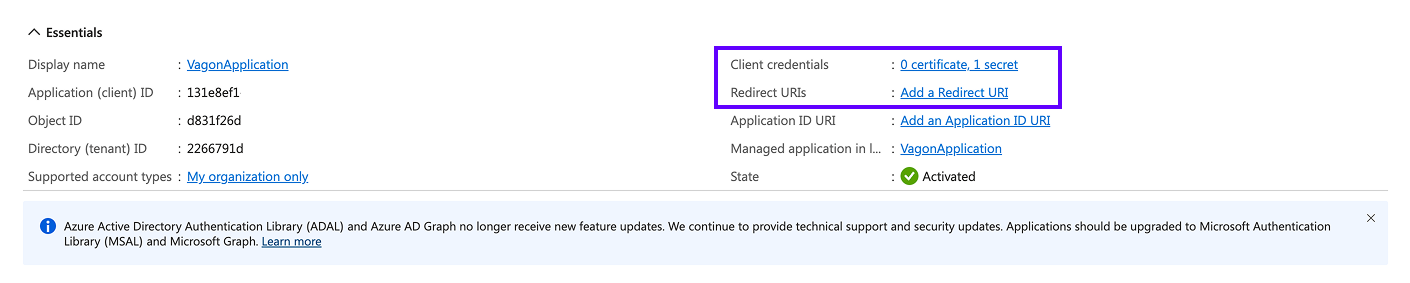
4. On the application's **Overview**, copy the **Application (client) ID** and the **Directory (tenant) ID**. You'll paste these into Vagon in Step 3.
5. Open **Client credentials** (Certificates & secrets) and create a new **client secret**. Copy its **Value** right away.
{% hint style="info" %}
A client secret's value is shown **only once**, right after you create it. Copy it immediately — if you lose it, you'll need to create a new one.
{% endhint %}
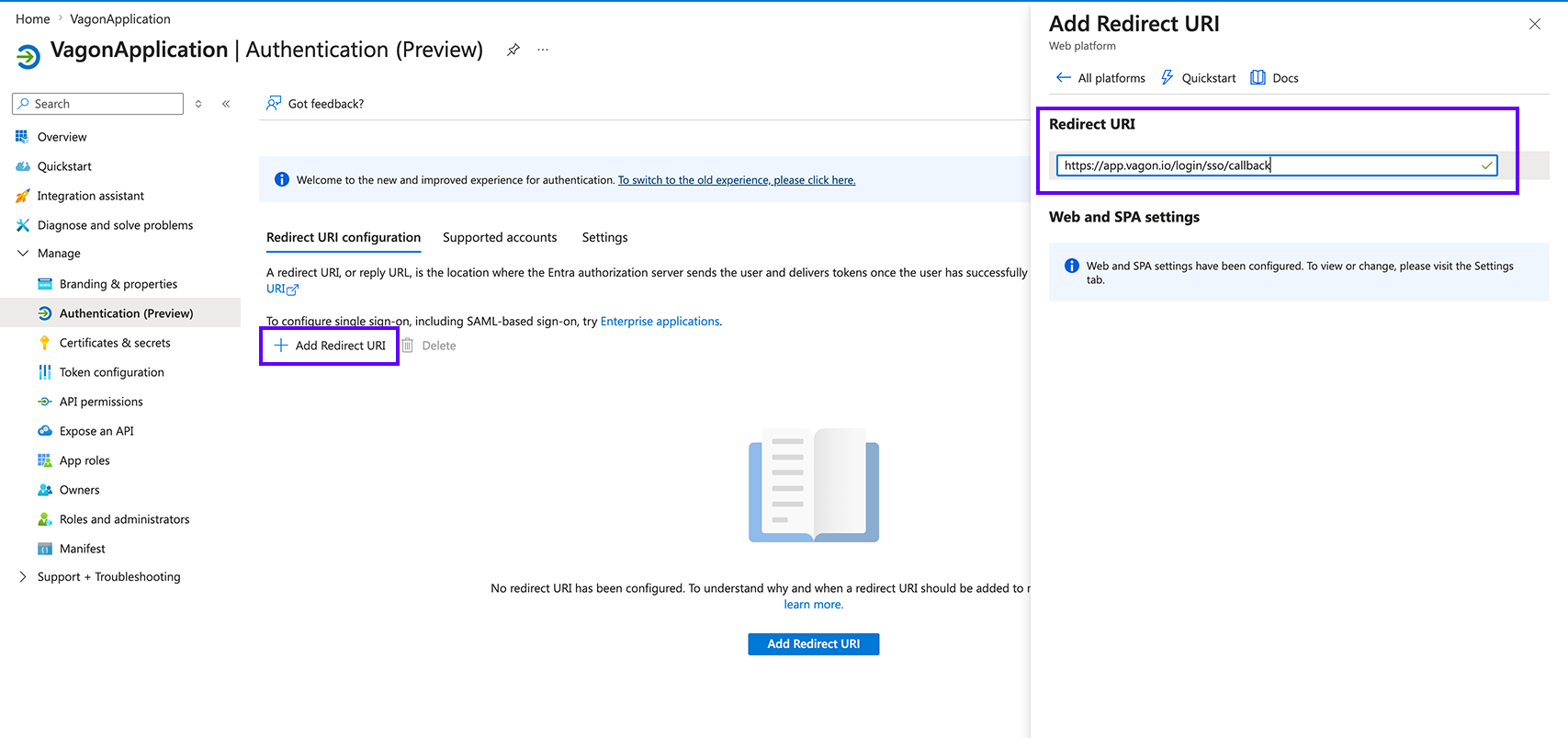
6. Open **Redirect URIs**, click **Add Redirect URI**, choose platform type **Web**, and paste the **Callback URL** you copied from Vagon in Step 1.
### Step 3 — Enter the configuration in Vagon
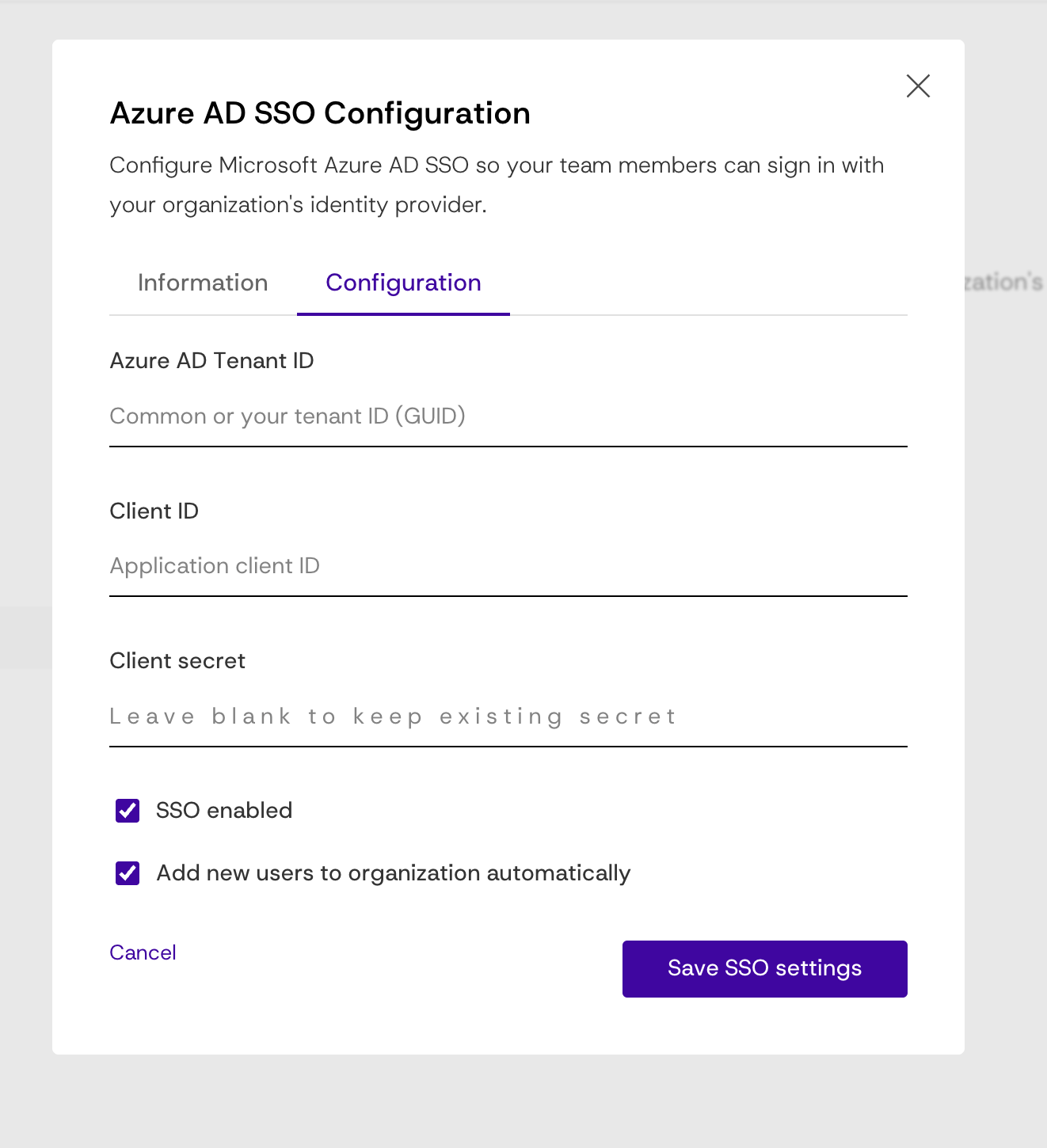
Return to the **Azure AD SSO Configuration** overlay in Vagon and open the **Configuration** tab.
1. Fill in the following fields using the values from your Microsoft Entra application:
| Vagon field | Where to find it in Microsoft Entra |
| ---------------------- | --------------------------------------------------------- |
| **Azure AD Tenant ID** | App registration → Overview → **Directory (tenant) ID** |
| **Client ID** | App registration → Overview → **Application (client) ID** |
| **Client secret** | Certificates & secrets → client secret **Value** |
2. Keep **SSO enabled** checked.
3. Set **Add new users to organization automatically** based on your preference (see [Managing SSO](#managing-sso) below).
4. Click **Save SSO settings**.
{% hint style="info" %}
The **Client secret** field shows *Leave blank to keep existing secret*. When you later rotate the secret in Microsoft Entra, paste the new value here; leaving it blank keeps the secret you already saved.
{% endhint %}
#### How your team signs in
Once SSO is saved and enabled, share your **SSO login URL** (`https://app.vagon.io/login/sso/`) with your team. Members open that URL and click **Sign in with Microsoft**.
* **New users** (no existing Vagon account) are created automatically and must verify their email before they can access the team.
* **Existing Vagon users** who haven't linked SSO yet receive an email to confirm and link their account.
* **Already linked users** are signed in directly.
#### Managing SSO
* **Automatic enrollment** — when **Add new users to organization automatically** is checked, users allowed in your Microsoft Entra tenant can join your team automatically by signing in with the SSO login URL. Users who already have a personal Vagon subscription are not added automatically and must be invited explicitly.
* **Invite flow** — when Microsoft Entra is enabled, the user invite flow is automated. Team Admins can still invite users from outside your organization at any time.
* **Disabling SSO** — you can entirely disable Microsoft Entra login with the **Disable** button, or temporarily disable it by unchecking the **SSO enabled** checkbox.
#### Troubleshooting
{% hint style="info" %}
* **Sign-in fails with a redirect error** — make sure the **Redirect URI** in Microsoft Entra exactly matches the **Callback URL** shown in your Vagon dashboard. The Callback URL is environment-specific, so always copy it from your own dashboard.
* **SSO login path is rejected** — the path must be unique and follow the format rules (3–64 lowercase letters, numbers, and hyphens), and cannot be `callback`.
* **A user can't be linked** — a user who already belongs to a different organization cannot be auto-linked to your team via SSO.
{% endhint %}